Modules

Contracting Business

Manage customers, contractor jobs and the associated billing in one place. From the first quote through the delivery note to the paid invoice – including operations planning, planned vs. actual comparison, linked finance entries and purchasing of inputs.

24capabilities
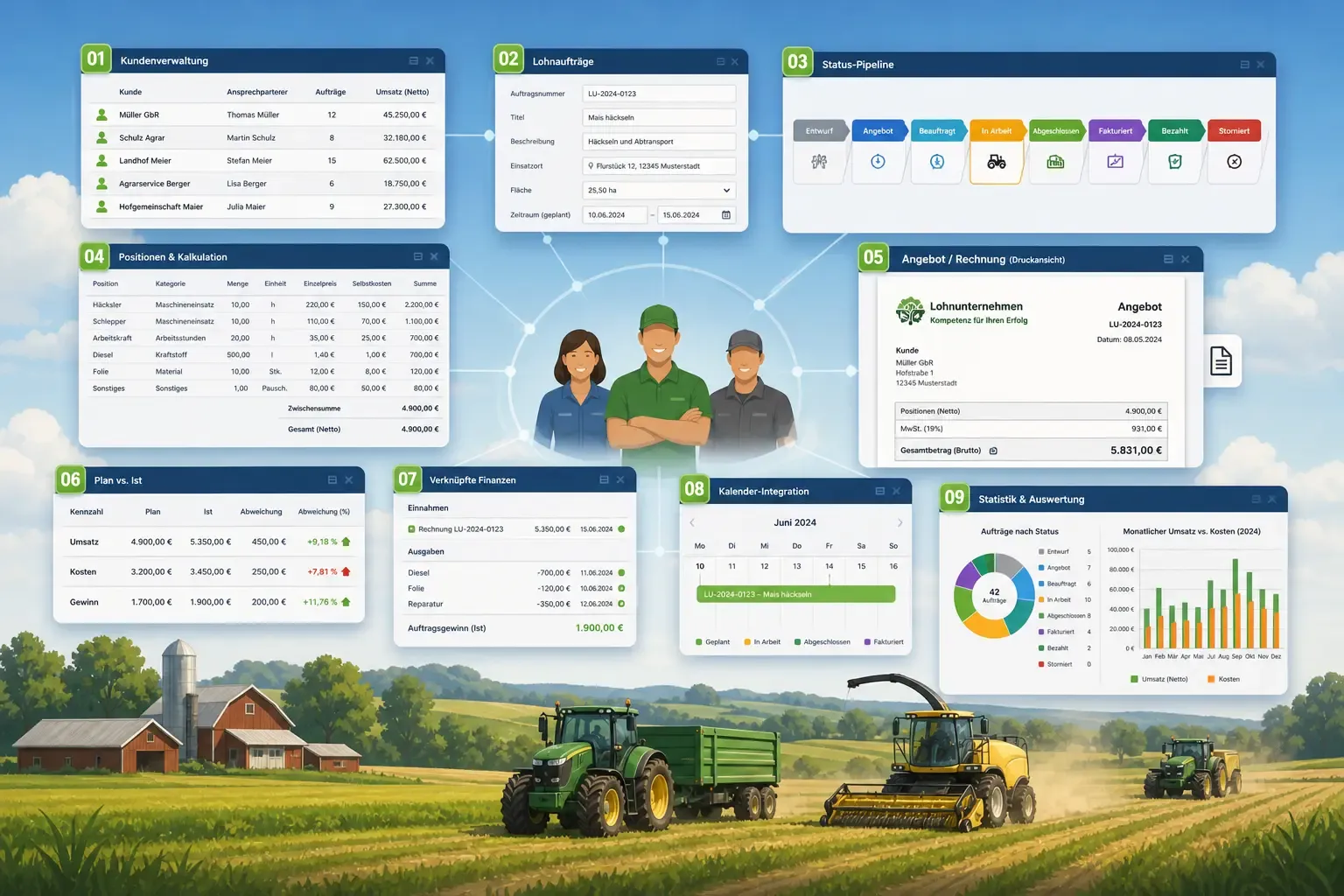
Numbered app windows around three people: a customer table, a contract-job form, a status pipeline from draft to paid, a costing table, and a quote in print view, with a forage harvester at work in the background.
capabilities

Contracting Business: 24 capabilities

01

Customer Management

Maintain your customers with address, contact person, phone, email, tax number, VAT ID and Leitweg-ID, plus buyer category and VVVO number with format check. On the customer you see their contractor jobs, animal and store sales and animal transports; the list counts the jobs per customer, and a chart shows the ten customers with the highest job revenue. You export a customer's data under GDPR or anonymise it – records subject to retention requirements are kept.

02

Contractor Jobs with Status History

Capture jobs with an automatically generated job number (LU-YYYY-####), title, description, location, linked field and planned service period. Every job moves through the full workflow – draft, quoted, confirmed, in progress, completed, invoiced, paid or cancelled – each highlighted in colour.

03

Line Items & Pricing

Add unlimited line items per job (machine usage, labour hours, fuel, materials, other) with quantity, unit, unit price and cost — totals are calculated automatically. For a machine usage item you choose carrier vehicle, attachment and driver; the quantity results from the operating-hours counter at start and end, you enter the fuel in litres, and as cost FarmManager suggests the machine's hourly rate from AfA, fuel and maintenance.

04

Quote & Invoice

Print a quote for every job with job number, service period, subtotal, VAT and grand total. The invoice is created as a draft outgoing invoice – automatically as soon as the job changes to "Completed", or with "Create invoice draft". Per item you decide whether a fixed quantity, the actual hours or the actual area from the completed operations of operations planning is billed. Quantities from the drivers' actual values are marked in the draft; you check and edit the draft before finalising it.

05

Delivery Notes & Consolidated Invoice

Write a numbered delivery note (LS-YYYY-#####) per delivery with customer, optionally a job, service date, location and items. “Accept” records who accepted the service at the customer's; the printout is an A4 note with quantities but without prices and with two signature lines. You combine several accepted delivery notes of one customer into one invoice draft – with service period and delivery-note number and date per line. Status cards show open, invoiced and paid notes.

06

Planned vs Actual

Compare planned and actual revenue, cost and profit per job; the variance is shown as a percentage. The actual values come from the assigned incomes and expenses and are gross amounts, while planning works net.

07

Linked Finances

Assign incomes and expenses directly to a job. When the invoice for the job is marked as paid, the income is created automatically with the job reference; you record costs as an expense on the job.

08

Calendar Integration

Every contractor job appears in the shared team calendar with service period, customer and status colour; with a switch on the job (on by default) you can hide it. Cancelled jobs are not displayed.

09

Statistics & Analysis

Charts show jobs by status, monthly revenue against costs for the current fiscal year, the planned margin per status and the distribution of job area, plus machine ROI, customer profitability and driver productivity over the last twelve months. A separate tab projects the job revenue forward as a forecast and shows the seasonal order situation.

10

Operations Board with Drag & Drop

Plan the workday on a board — drag operation cards onto a crew's lane, put them in the right order and adjust the plan on the fly. Card colour always shows status, and progress updates automatically as operations run.

11

Six Views of the Same Day

View the schedule as a crew swimlane, as a Gantt chart over a date range, as a status kanban, by location or field, by machine, or as a tree (crew → fleet → person) — whichever fits what you're focused on right now.

12

Crews (Machine & Driver Teams)

Set up fixed crews of machines and drivers once — for example a chopping crew of forage harvester, hauling trailers and silage compactor — and deploy them daily. For a single day you can swap the crew's line-up without changing the template.

13

Automatic Conflict Detection

The board warns you as soon as a driver or machine is double-booked, a crew is assigned twice, a driver is absent or an assigned machine is unavailable – for example out of service or in maintenance. A "Conflicts today" panel bundles every warning with a direct jump to the affected crew; a capacity warning also flags when planned hours exceed the day's capacity.

14

Weather per Day on the Board

For every day the board shows min/max temperature and precipitation (DWD) with frost and heat colour-coding — so you can plan weather-dependent work like harvest, tillage or plant protection ahead of time.

15

Day Templates & Recurring Series

Save a complete day's plan as a named template and load it onto any day. Create recurring operations as a series — daily, weekly, monthly or yearly.

16

Driver App "My Operations"

Drivers see their day's operations on their phone. With the "Report task status" permission they move the status of their assigned operations forward and report completion with actual hours, worked area and a note — the board picks up the progress automatically. They do not need a general edit permission for this.

17

Actuals Capture & Utilisation Analysis

On completion, actual hours and actual area are recorded and compared against plan. A 30-day analysis shows completion rate, machine utilisation and a plan-vs-actual chart per crew.

18

Operations Planning for Contractor Jobs

The same operations planning is available as its own board for contractor jobs — with a Gantt overview, capacity warning and a daily print sheet. Confirmed and in-progress jobs without a scheduled operation sit in the "Open jobs" tray; drag one onto a crew's lane and the operation dialog opens already filled with the job's data.

19

Print Daily Sheet

Generate an A4 daily sheet as a PDF for each day — one section per crew with all its operations and fields for signing off Start, Done at and Notes. The classic morning briefing for drivers on early shift.

20

Capture Requirements with Category and Date

Create input requirements with a name, quantity, unit and the date by when they are needed, and assign each requirement to a category – from seed through fertilizer, plant protection and feed to diesel/fuel and other

21

Compare Quotes

Capture quotes from several suppliers with price per unit, total price, delivery date and validity and compare them side by side

22

Award and Revoke

Award exactly one quote; competing quotes are reset automatically, and the award can be revoked at any time. With "Place order" you generate an order document as a PDF from the awarded requirement, with order number, quantity, agreed price and required-by date; it is filed in the commercial correspondence register and can be downloaded. If you place the order again, the existing document is kept unchanged and the new one is added as a further version. A requirement moves through the statuses open, collecting quotes, awarded, ordered and completed, or is cancelled.

23

Metrics and Analytics

Keep track of open and awarded requirements, award value and quotes received, with a distribution by status and category

24

Fulfil Procurement (Storage & Finance)

Fulfil awarded requirements straight from purchasing – either as a goods receipt that creates a storage batch with quantity and cost, or as a direct expense in Finance; the procurement target drives the booking and prevents double bookings. For a goods receipt you record the delivered quantity, the supplier's delivery-note number and a scan of the delivery note, which is filed in the commercial correspondence register. You record purchases without quotes and award as a direct purchase, and you create a new supplier right there.

Common questions

Frequently asked questions

Quick answers to the questions farms ask most often about this module.

Modules

Other modules

Explore more modules from this area — each one is built to work seamlessly with the others.

Storage & Warehouse

Finances

Multi-Farm Management

Analytics & Administration

Built for real farms and modern operations

Scale from small farms to large enterprises.