Modules

Multi-Farm Management

Run multiple farms under a single account – in every plan, with separate billing per farm, strict data isolation and the ability to move staff between operations or grant them access to additional farms.

18capabilities
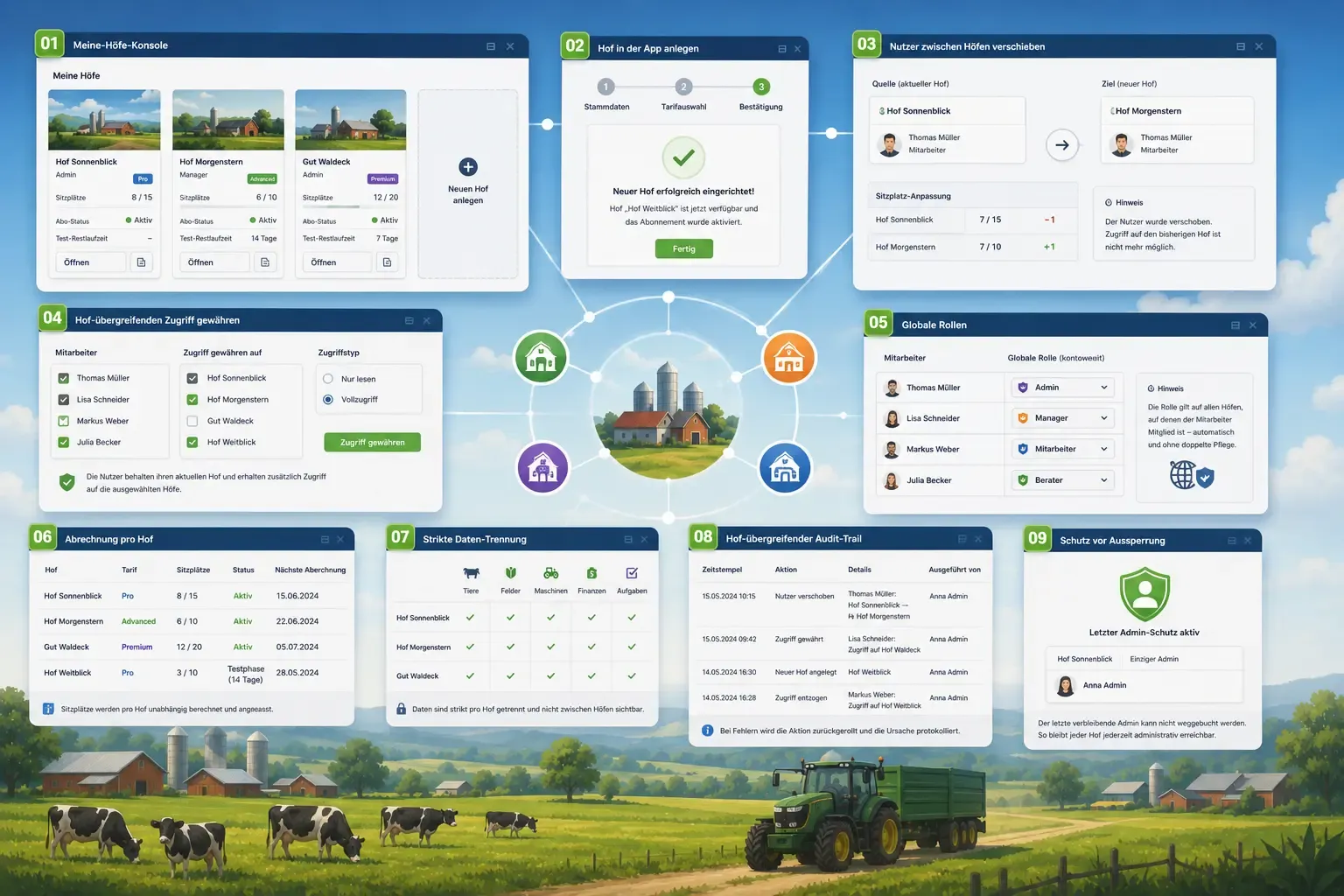
Numbered app windows around an icon of several connected farmsteads: three farm cards with seat and subscription status, a setup wizard for a new farm, a staff transfer between farms, and a data-separation matrix with checkmarks per farm.
capabilities

Multi-Farm Management: 18 capabilities

01

My Farms Console

A card overview of every farm where you are admin or manager – with plan tier, used seats, subscription status and trial countdown. One click switches you between farms or jumps straight into the billing page. On each card, admins also maintain the farm's default values, farm profile, HI-Tier access and billing details.
02

All farms at a glance

You find the “All farms at a glance” page under User Management and in Farm Management as soon as you hold a role in a second farm. It puts the figures of all these farms side by side in one table: area in hectares, crops of the current harvest year, animals in stock, machines and how many of them have overdue maintenance, open and overdue tasks, upcoming and overdue statutory deadlines, HI-Tier problems and machines with active telematics. At the top is the total, in which the same crop on two farms counts only once. For farms on the Business (Pro) plan in which you may view income and expenses, income, expenses and balance are added, for the same period as on the home page and separated by currency. Each farm shows only what your role allows there. A figure you may not see in a farm appears there as a dash and is left out of the total. “Open farm” takes you to the home page of that farm. You can download the table as CSV, and every export is noted in the activity log of the farms that appear in it.

03

HI-Tier Access per Farm

You store the HI-Tier credentials right on the farm card in the My Farms console. A side panel takes the holding number, co-user ID and PIN as well as the sync mode — manual or automatic on changes — and shows when the last sync ran. If HI-Tier is switched on, admins also switch on TAM for the farm in the same panel; the automatic TAM notification exists only together with the automatic sync. Anyone running several farms sets them up one after another from the same page, without switching between operations.

04

Create a Farm In-App

Spin up additional farms straight from the application – without re-registering. A three-step wizard walks you through master data, plan selection and confirmation, then provisions the new farm and its subscription automatically. Every new farm starts with its own 30-day trial.

05

Move Users Between Farms

Transfer a team member from one farm to another in a single click. They then have no access to the previous farm any more, and every record stored there stays exactly as it was. FarmManager adjusts the seats of both farms automatically, provided additional seats are billed there – not yet during the trial.

06

Grant Cross-Farm Access

Give staff additional access to other farms without removing them from the current one. Per user or in bulk for several users at once – ideal for advisors, floaters or sites with shared crews.

07

Roles per Farm

A role applies only on the farm where it was assigned. Someone who works on several farms can therefore hold a different role on each, for example Manager on their own farm and harvest helper on their parents' farm. When you give someone access to another farm or move them there, you choose their role and permissions on the target farm in the dialog. Nothing is carried over from the previous farm, and you can only assign what you are allowed to assign on the target farm yourself. For a veterinary practice, adviser or tax office there is also time-limited guest access for reading, which likewise applies only to your farm.

08

Farm sites for several locations

Many farms run more than one location, for example a leased farm a few kilometres away or an outstation with the young stock barn. You create these locations under “Farm sites”, with name, abbreviation, colour and address and, if you like, their own registration numbers for HI-Tier and the Collective Application. Then you assign fields, machines, barns, storage locations, herds and cost centres to a farm site. As soon as two active farm sites exist, the lists have a filter and a “Farm site” column, and the overview shows the fields, machines and barns of the selected farm site. A farm site belongs to the same farm and needs no subscription of its own. Reports to HI-Tier keep running through the HI-Tier settings of the farm. In every plan.

09

Evaluation per farm site

From the Business (Pro) plan you choose a farm site in the operating-branch analysis, also for printing. It then contains the bookings that name a field, a machine or an animal of this farm site. Bookings without such a reference, such as general administration costs, are missing in this view. The contribution margins in the field list follow the filter on the farm site. If you reconcile fields from the John Deere Operations Center or from CNH FieldOps, the farms created there come in as farm sites. The reconciliation does not create a farm site again that you deleted, and whatever was assigned to it keeps its assignment.

10

Cross-farm report

If you run a biogas plant as a GmbH next to the dairy farm, or help farm your parents' land, you will find the “Cross-farm report” page under Finances. It puts your farms side by side, with EÜR and P&L, the contribution margin per operating branch, the liquidity planning, the remaining debt on loans and the open receivables and payables. Each farm has its own column with its own fiscal year, and the total stands next to them. A farm is only included if it uses the Business (Pro) plan and you may view its finances yourself. Farms where you are only a guest do not count, and an area that you cannot otherwise see in a farm stays empty here too. If the farm delivers silage to the biogas plant, that business appears in both farms. A switch takes such sales out of the figures. FarmManager recognises the other farm by the VAT ID of the customer or supplier, and by the name when there is no VAT ID. Amounts in different currencies are added up separately, and on request the page also converts them to euros at the ECB reference rate. The page remembers which farms you ticked. The report is available as CSV and as PDF, and every export is noted in the activity log of the farms involved. The page appears in the menu as soon as you may view the finances in at least two farms.

11

Copy master data into another farm

For a second farm you do not have to type in tractors, customers and suppliers again. On the “Copy master data” page you choose the farm the data comes from and the farm that receives it. Then you tick the areas: machines with maintenance plans and checklists, customers, suppliers, storage items, templates of the farm, your own plant protection products and fertilizers, as well as contractor services, customer prices and farm shop products with their prices. A preview shows for each area what will be created, what already exists in the other farm and what stays behind, with the reason. FarmManager re-points the references to the new farm, so a copied customer price points to the customer there. What is already in the target farm stays unchanged, and a later second copy creates only what has been added in the meantime. Stock, bookings and the machine history stay in the old farm, as does a customer’s consent to campaign e-mails. You need the right to see the data in one farm and the right to create it in the other. Areas that the target farm’s plan does not include stay out, and farms in which you are only a guest are not offered. Every copy is noted in the activity log of both farms.

12

Hand over machines, customers and fields to another farm

Sometimes a record changes farms, for example when the tractor goes to the son’s farm or a leased field is from now on worked by the other farm. For machines, customers, suppliers and fields there is “Hand over to another farm” at the top of the edit page. You choose the farm and the day of the handover, which must not lie in the future. The other farm gets a record of its own, and the old one stays behind, closed, with its history. A machine takes its maintenance plans and its maintenance and repair history with it, but not the costs, because they are already in the books of the handing-over farm. There it is archived and its telematics connection is ended. Customers and suppliers are set to inactive in the old farm, and their invoices, delivery notes and expenses stay there. A field goes across with its boundary, size, access point and soil. In the old farm it gets the status “Handed over” and keeps its field record there. From then on it no longer counts there for the fertilizer demand, the flat-rate profit and the satellite index. Only someone who may edit and delete the record in one farm and create it in the other can hand it over. Both activity logs record the handover.

13

Moving stock and lending machines between your own farms

Anyone who runs two farms carries goods across now and then, sometimes concentrate feed for the young-stock barn, sometimes a rest of seed wheat after the autumn sowing. In the store there is “Move to another farm” for this, in the item list, on the storage item and on the single batch. The quantity leaves the oldest batches, each at its cost price. The other farm gets a new batch for each one, with the same price, the same batch number and expiry date, and the handing-over farm is named as supplier. If the other farm does not keep the item yet, FarmManager creates it there. If you like, you settle the value internally right away. The cost value then appears as income in the handing-over farm and as an expense in the other. When one farm lends the tractor or the slurry tanker to the other, you record it like any lending. Once it is completed, “Book at own farm as rented in” books the job in the other farm as rented in with the same amount, and the expense arises there. If the amount changes later, both jobs carry a notice. In the cross-farm report, the internal settlement and the lending appear as sales between your own farms and can be taken out of the figures, even if a farm is renamed later. Both farms need the Business (Pro) plan for this. You must also be allowed to edit the storage item or the lending in the handing-over farm and to create such records in the other.

14

Per-Farm Billing

Each farm has its own subscription with its own plan tier, its own seat count and its own billing details – you maintain billing country, postcode and VAT ID on the farm card. You set the number of seats on the farm's subscription page; FarmManager changes it by itself only if you move a user to another farm or grant them access to another farm and additional seats are already billed there.

15

Strict Data Isolation

Animals, fields, machinery, finances and tasks stay strictly separated per farm – every farm is its own tenant. What lives on one farm is neither visible nor touchable from another. Dashboard, charts and activity log also show only the farm you are currently working in, and exports and imports that run in the background read and write only in the farm in which they were started. Only two pages place the figures of several farms side by side, “All farms at a glance” and the cross-farm report, and each reads in every farm only what you may see there. Data gets into another farm only when you copy, hand over or move it yourself and have the rights for it in both farms.

16

Own Appointments for All Farms

Anyone who belongs to several farms creates an own calendar appointment with the visibility “All farms”. The appointment then appears in the calendar of each of these farms, visible only to the person who created it – the other data of the farms stay separate. The choice appears only from the second farm on, and the calendar no longer shows appointments from a farm someone has left.

17

Cross-Farm Audit Trail

Every grant, move and farm creation is logged with timestamp, acting user and source/target farm. If a billing call fails, the action is rolled back completely and the cause is recorded.

18

Lock-Out Protection

The last remaining admin of a farm can never be moved away – every farm always stays administratively reachable.

Common questions

Frequently asked questions

Quick answers to the questions farms ask most often about this module.

Modules

Other modules

Explore more modules from this area — each one is built to work seamlessly with the others.

Storage & Warehouse

Contracting Business

Finances

Analytics & Administration

Built for real farms and modern operations

Scale from small farms to large enterprises.