Modules

Calendar & Tasks

You plan the farm's work with tasks and a shared calendar, and you coordinate with your team in the chat.

More about Calendar & Tasks

With a shared calendar and tasks with priorities and deadlines, your team knows what is coming up, from planning to work in the field.
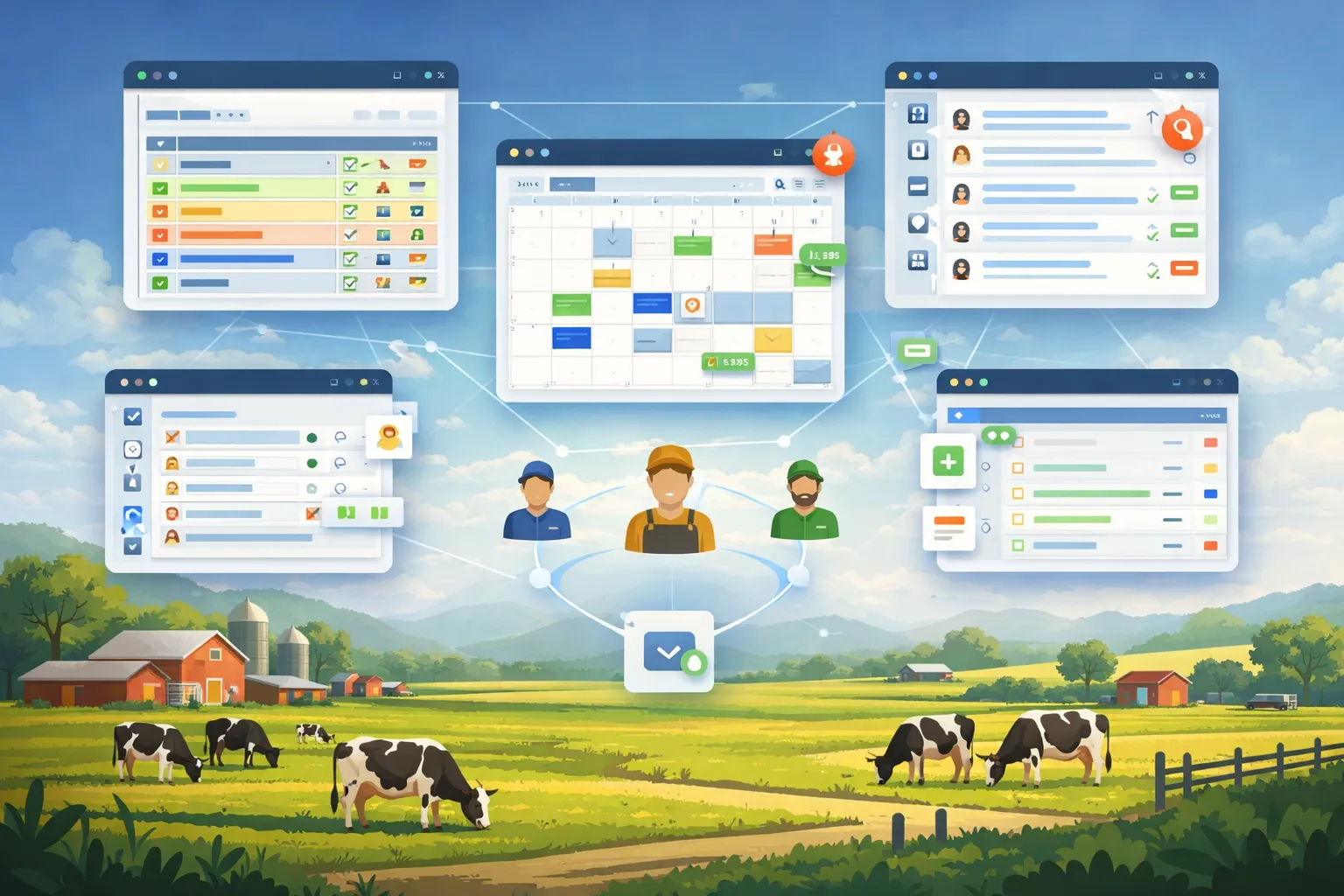
Farm scene with grazing cows: three farmers are linked by lines to app windows showing a task list, a calendar with coloured date blocks, and notification panels.
Core features

Key features of Calendar & Tasks

The details of each function are further down, in its group.

Team chat

In the team chat, the people on your farm write each other messages, to the whole farm, to a team or to one person directly.

Functions by group

Planning and assigning tasks

Tasks with a priority and a deadline go to individual employees or whole teams, and bigger undertakings can be bundled in a project.

See all functions

Task Management

You create tasks, delegate them and follow their progress.

More

Create, delegate, and track task progress. Set priority levels and deadlines, and assign tasks to individual employees or teams. Employees take over tasks marked "Self-assignable" themselves (for team tasks, the members of the team) and hand them back when needed. From the Business (Pro) plan, you open a new task with one click from the notice that a stock has fallen below its minimum (storage, spare part, medication), with the title and description already filled in. With the Enterprise (Premium) plan, people who can see the shift schedule also assign a task to a planned shift.

Partly from the Business (Pro) plan

Tasks linked to records, categories and weekday series

A task can be linked to a machine or a field, and your own coloured categories mark it in the list and the calendar.

More

A task can be linked to a machine, a field, a barn, an animal, a herd, a contractor job, a storage location or a plant protection device; only the areas that your plan and role open are offered: barns, for example, from the Business (Pro) plan, contractor jobs in the Enterprise (Premium) plan. Machines, fields, barns and contractor jobs show their tasks on the “Tasks” tab, where you can also create a new one right away. Your own categories with a colour, such as barn, workshop or office, mark tasks in the list and calendar and serve as a filter. When a recurring task is completed, FarmManager creates the next one; weekly tasks also repeat on fixed weekdays such as Monday, Wednesday and Friday, across the end of the month. “Duplicate” creates a new open task with category, link, assignment, repetition and checklist; comments, files and the done status are not carried over.

Partly from the Business (Pro) plan

Templates: set up once, reuse anywhere

You save recurring entries as a named template and apply it to new forms with one click.

More

Save recurring entries as a named template and apply it to new forms with one click, for tasks including their checklist, crop plans and plant protection applications, from the Farm (Basic) plan also for feedings and vaccination and treatment schedules, from the Business (Pro) plan for maintenance schedules. Which template types someone uses depends on the modules their role makes available. Every template is either private ("Only me") or shared with the whole farm; save a completed form with "Save as template". Regulated or calculated fields are deliberately never stored in it.

Partly from the Business (Pro) plan

Reassign or reschedule several tasks

When the milker takes a week off, you hand their open tasks to another person or team in one step.

More

When the milker takes a week off, tick their tasks in the task list and choose “Reassign / change due date”. A person or team you choose replaces the assignment of every ticked task, and a new deadline applies to all of them. Fields you leave empty change nothing, and completed tasks stay as they are. The notifications then arrive collected. Each person affected gets one message listing all of their changed tasks, instead of one message per task. Only people who may edit tasks see the action.

Projects with follow-up

Some jobs run for months, such as converting the young-stock barn, a new silage pad with a building permit or the farm handover.

More

Some jobs run for months, such as converting the young-stock barn, a new silage pad that needs a building permit, or the farm handover. For these you create a project under “Projects”, with status, responsible person, start and target date. In the project journal you keep short dated notes, and you attach the carpenter's quote or the photos from the building site as files. You assign tasks to the project, and the task list shows which project a task belongs to. For the follow-up you enter the day the project should come back onto your desk. It then appears in the calendar, and the responsible person gets a reminder in the app and by email in the morning, every day again until someone enters a new day or closes the project. If nobody is responsible, the reminder goes to farm management. From the Business (Pro) plan a project has a budget. You book expenses to the project and see how much of it is already spent. An invoice in Danish kroner stands next to it in its own currency and is not converted. In the Enterprise (Premium) plan, open projects are available as a cost centre when someone clocks their hours. If you delete a project, its tasks, expenses and hours are kept. Projects are in every plan, starting with the Field & Forest (Lite) plan.

Partly from the Business (Pro) plan

Completing tasks and capturing on the go

Steps, photos and comments belong to the task, and without a network you note new tasks or complete your own in field capture in the browser.

See all functions

Checklists in tasks

A task can be broken down into individual steps, each with a label and an optional note.

More

Break a task down into individual steps, each with a label and an optional note. The person the task is assigned to and whoever created it tick the steps off in the task or directly in the task list, even without the right to edit; for each step FarmManager records who ticked it off and when. If you wish, a task can only be completed once all steps are done. The list shows progress, for example 3/5, and filters for tasks with open steps. Workflows with always the same steps you save as a task template.

Attachments on tasks

You attach photos, documents, voice recordings and videos to a task, for example the photo of the damaged fence.

More

You attach photos, documents (PDF, Office, text and CSV), voice recordings and videos to a task, for example the photo of the damaged fence or a work instruction as a PDF. In the task, photos appear as images, voice recordings and videos with their own player, documents as a link, each with the person who uploaded them and the time. Whoever may see the task may open the files; whoever may edit it may add and remove them. The files are stored separately by farm, and every access is checked again.

Comments on tasks

Every task has its own comment thread on its page.

More

Every task has its own comment thread on its page. There you attach photos and documents to a comment and mention colleagues with @. Only people who may see the task are notified. The person who gets the task, the person who created it and the responsible team follow it automatically, even after a reassignment. New comments are announced through the bell and as web push, never to the author and bundled rather than for every sentence; a mention is always announced.

Field capture without a network

In the browser you note a new task without a network, complete a task of your own and clock in with the Enterprise (Premium) plan.

More

Via Calendar › “Field capture (offline)”, the user menu, the “Capture” button on the home page (on the smartphone) or the shortcut on the installed app icon, you open a lean capture page in the browser. There you note a new task with a note and clock in with the Enterprise (Premium) plan, even without a network. You can also complete an open task there that is assigned to you or that you created, and your note is saved as a comment on the task. The device must have loaded the task beforehand with a connection. A task whose checklist must be fully ticked off cannot be completed there. If the task was changed, completed or deleted in the meantime, FarmManager does not complete it. Field capture shows the reason, and the note waits for a decision in the office. From the Business (Pro) plan you also photograph receipts there with “Receipt (photo)”. The photo is reduced in size on the device and saved without location data and, after the transfer, lands in the document inbox, with the time of capture as the time of receipt. In every plan, “Area monitoring photo” lets you take the photos for an open photo request from the paying agency there. The device records location, viewing direction and time itself, and without a location the page does not save such a photo. The entries stay on the device and are transferred as soon as a connection is available again; the moment of capture counts as the time. Once opened with a connection, the page also works without one. FarmManager preloads it in the background once per browser session. The page is designed for outdoor use: large buttons, strong contrasts, light or dark mode as set on the device or in FarmManager; a badge shows whether the device is connected or working offline, and a large number shows the captures still waiting to be transferred. If the connection drops while you are working in FarmManager, a notice with the link “Go to field capture” appears at the bottom of the page. The cross hides it until the next interruption. The notice only appears for people who are allowed to use field capture. Field capture does not exist in the apps for Android and iOS.

Partly from the Business (Pro) plan

Calendar and appointments

Appointments from the modules and your own entries appear in one calendar, which you can also see on your phone through a subscription.

See all functions

Calendar

Each person sees the event types their role makes available and what is coming up when.

More

A central schedule for breeding cycles, harvest windows, maintenance appointments and tasks, in the Enterprise (Premium) plan also for contractor jobs (can be switched off per job). The breeding cycles with the expected births appear in the calendar only from the Business (Pro) plan. Each person sees the event types their role makes available, and at a glance what is coming up. Add your own calendar entries with custom visibility (personal, shared with selected teams or people, farm-wide or, if you belong to several farms, “All farms”, in which case only you see it, in each of your farms) and recurring series (daily, weekly, monthly, yearly), and import appointments as an .ics file from Outlook, Google or Apple. Series arrive with their rhythm, interval, end date, weekdays (also “every second Tuesday of the month”), number of occurrences and skipped days. Other parts of a rule, such as “only in March and April”, are not carried over by the import.

Partly from the Business (Pro) plan

Views, Filters and Drag & Drop

You switch between month, week, day and list view and filter by event type.

More

The calendar brings together up to 18 event types: grazing and crop plans, animal, machine and field events, tasks, vaccinations, treatments, breeding, contractor jobs, closed periods for fertilization, statutory deadlines, shift schedule, absences, due maintenance, inspection deadlines and safety instructions, the follow-ups of projects, and your own entries. You switch between month, week, day and list and filter by event type; if you can see the shift schedule, you also filter shifts and absences by employee. A click on a day opens a menu from which you create, for example, a task, a vaccination or a field event with the date already set. Entries you may edit you drag and drop onto another day; contractor jobs and vacations you change in their own form, and animal events reported to HI-Tier keep their date.

Absences, maintenance and inspection deadlines in the calendar

With the Enterprise (Premium) plan, the calendar shows who is away on which days.

More

With the Enterprise (Premium) plan, the calendar shows who is away on which days. Colleagues see only the name with “absent” or “absence requested”, without type and reason. The type of absence is seen only by the people who decide on vacation and by the absent person themselves; rejected and cancelled absences are not shown. From the Business (Pro) plan, the next due date of every active maintenance plan of a machine appears in the calendar. Already from the Field & Forest (Lite) plan, the calendar shows due safety instructions per topic with the number of people who still need them, risk assessments that are due for review, and expiring inspection reports of machines, such as the UVV (accident prevention) inspection. What is already overdue is shown in red in the calendar. You complete maintenance and inspection deadlines in the respective module; in the calendar they cannot be moved. Each of these event types is seen only by those who may see the module it belongs to, and all of them can also be included in the calendar subscription.

Partly from the Enterprise (Premium) plan

Recurring appointments with weekdays and exceptions

For daily or weekly repetition, you can set your own recurring appointments to certain weekdays, for example the farm shop on Friday and Saturday.

More

For daily or weekly repetition, you set your own recurring appointments to specific weekdays, for example the farm shop on Friday and Saturday or the acid rinse of the milking system on Monday and Thursday. On request, a series ends after a fixed number of occurrences, and you take out individual days such as a public holiday with “Skip day”. A monthly series that starts on the 31st skips months without that day instead of slipping into the following month. The calendar, the calendar subscription and the reminder on the day of the appointment show the same occurrences of the series. In every plan, starting with the Field & Forest (Lite) plan.

Calendar Subscription and iCal Export

Through a secret address you subscribe to your farm calendar in Google Calendar, Outlook or Apple Calendar.

More

Under “Subscribe & export” › “Subscribe to calendar” you create a secret address with which Google Calendar, Outlook or Apple Calendar subscribe to your farm calendar. You choose the event types; the subscription shows the last 30 days and the next 12 months and updates itself. Google, however, polls subscribed calendars at longer intervals, so new appointments appear there with a delay of a few hours. The address is shown exactly once, with a copy button, QR code and instructions for the three calendar apps. Each person has one address per farm; it can be ended at any time and ends by itself when the password is changed, access is blocked or the farm is left. The subscription never shows more than the person sees in the calendar. Rights and plan are checked anew on every request, and absences appear only as “absent”, without type and reason. For a one-off import, you download the chosen event types for a period of up to two years with “Export iCal” as an .ics file. In every plan, starting with the Field & Forest (Lite) plan.

Reminders and notifications

FarmManager tells the people responsible about due appointments and deadlines in the app and by email, and anyone with web push switched on also gets them on the smartphone.

See all functions

Reminder on the Day of the Appointment

Every morning FarmManager reminds the people involved in the app and by an email that bundles all entries of the day.

More

Every morning FarmManager checks what is due in the calendar and reminds the people involved in the app and with an email that bundles all entries of the day: your own appointments, including those from a series, as well as maintenance due, upcoming vaccinations and births, and the end of a treatment or withdrawal period. FarmManager reminds you of maintenance due, upcoming vaccinations and births from the Business (Pro) plan. Only the people who may see an own appointment receive it; a personal one therefore goes only to you.

Partly from the Business (Pro) plan

Notifications in the App and as Push (PWA)

Whoever is assigned a task gets a notification in the app and, with web push switched on, on the smartphone too.

More

Whoever is assigned a new task, personally or through their team, receives a notification in the app. The same applies when a task later goes to another person or team. When a deadline is moved, those responsible get a message with the new date. Whoever makes the change themselves is not notified. These same in-app notifications mirror straight to your phone or desktop as Web Push messages: task assignments, deadline reminders and alerts reach you even when FarmManager is closed. Enabling is always your choice: a one-tap opt-in prompt during onboarding or a dismissible banner you can snooze, never an automatic subscription. Each device manages its own subscription and works across Chrome, Edge, Firefox and Safari.

Reminder Emails for Deadlines and Backlogs

Beyond the in-app bell, FarmManager emails the right people about items that are due or overdue.

More

Beyond the in-app bell, FarmManager emails the right people about due and overdue items: maintenance due dates, expiring soil samples, statutory deadlines, the census report to HI-Tier (with an existing HI-Tier connection), antibiotic (TAM) reports, manure transports and more. Instead of many single emails, FarmManager bundles them into one summary, grouped by farm and by area, each entry with its deadline and a direct link into the app. Every email is localized to the recipient's language and lists exactly which records need attention; recipients are filtered by role, so people only get reminders for the modules they actually work with. How they arrive is each person's own call, set in their profile: bundled as a summary (the default), immediately on every occasion, or not at all. The setting governs email only; the in-app notifications stay untouched, so "no emails" never makes anything disappear, and calendar reminders you arranged yourself keep arriving at their own time.

Open deadlines and backlog at a glance

On the home page, a list shows what the scheduled checks last found, for each area your role is responsible for.

More

Under “Manage all deadlines” on the home page, a list bundles what the scheduled checks last found for your farm, per area the number of open items, the next deadline, how many of them are overdue and when it was last checked. Overdue items sit on top, and every row leads straight into the module concerned. What you see is the state of the last scheduled run, and each row only appears for the roles responsible for that area. The individual findings are also in the “To do” list.

Team chat

FarmManager creates a channel for the farm and for each team and keeps the members up to date when someone joins or leaves the farm.

See all functions

Team chat

In the team chat, the people on your farm write each other messages, to the whole farm, to a team or to one person directly.

More

In the team chat, the people on your farm write each other short messages, to the whole farm, to a team or as a direct message to one person. FarmManager creates the channel for the farm and for each team itself and keeps the members up to date. Whoever joins the farm is part of it right away, and whoever leaves can no longer read along from that moment. For the harvest or a barn conversion, you create a topic channel and choose the members. Only members can read and write in a channel. You attach photos or files to a message, replies appear below it as a thread, and your own messages can be edited and deleted. Whoever is mentioned with @ and their name gets a notice in the bell and, if they have switched on web push, on their phone. For each channel, every person sets whether they are notified for every message, only for mentions or never, and a muted channel does not report at all. The notifications of a lively conversation arrive bundled instead of for every sentence; a mention always reports. The number of unread messages is shown at the menu item. In a GDPR access request, a person’s messages are included in the export, and when the person is deleted under GDPR, their messages disappear together with the attachments. In every plan, starting with the Field & Forest (Lite) plan.

Announcements with read confirmation in the team chat

Management, farm managers and HR switch on the read confirmation when writing in the team chat.

More

Management, farm managers and HR switch on the read confirmation when writing in the team chat, for example for the message that from Monday the hygiene lock at the cow barn is mandatory. Everyone who is in the channel at that moment gets a notice, even if they have muted the channel, and confirms with “Read and understood”. Below the message it shows how many have already confirmed, and whoever wrote it sees the names of those still missing. Whoever has not confirmed after 24 hours is reminded once. Below your own messages you can also see whether they were read: in a direct message “Delivered” or “Read”, in a channel for example “Read by 4/7”, and the names appear when you point at it with the mouse. In every plan, starting with the Field & Forest (Lite) plan.

Voice messages and shared records in the team chat

Whoever has no hand free records a voice message of up to three minutes, where the browser allows the microphone.

More

Whoever has no hand free records a voice message of up to three minutes in the team chat. It is played in the chat and not transcribed. FarmManager shows the record button only where the browser allows recordings through the microphone. You pin important things such as the number of the emergency vet service at the top of the channel, and you answer a message with nothing more than a reaction such as a thumbs up. A single machine or field does not need its own channel: “Share a record” links a task, a machine, a contractor job, a barn, a field or an animal in the chat, and “Discuss” opens the comments of exactly that record, where the conversation can still be found later. Whoever may not see the record sees neither its name nor the comments in the chat. In every plan, starting with the Field & Forest (Lite) plan.

Photos and videos in the team chat

FarmManager reduces photos in the team chat to at most 1,600 pixels on the longer side as they are uploaded.

More

FarmManager reduces photos you send in the team chat to at most 1,600 pixels on the longer side as they are uploaded and then compresses them once more on the server. That way the storage does not fill up with full-resolution phone photos, and the picture is still sharp enough to spot the oil stain under the tractor. Videos in the chat may be up to 50 MB. A longer recording you attach to the task, where up to 200 MB is allowed. Files you attach to tasks, machines or other records outside the chat are stored just as they were uploaded. In every plan, starting with the Field & Forest (Lite) plan.

Common questions

Frequently asked questions

Answers to common questions about this module.

Modules

Other modules

These modules belong to the same area and work with the same data.

People & Organization

Try it with your own animals and fields

You test FarmManager free for 30 days, and on request we do the setup together with you at no extra charge.