Modules

Telematics & Live Fleet Map

From the Business (Pro) plan, you connect your machines to FarmManager and see your fleet live on the map.

More about Telematics & Live Fleet Map

Connect your machines to FarmManager and watch your fleet live on the map: position, operation and utilisation in one place.
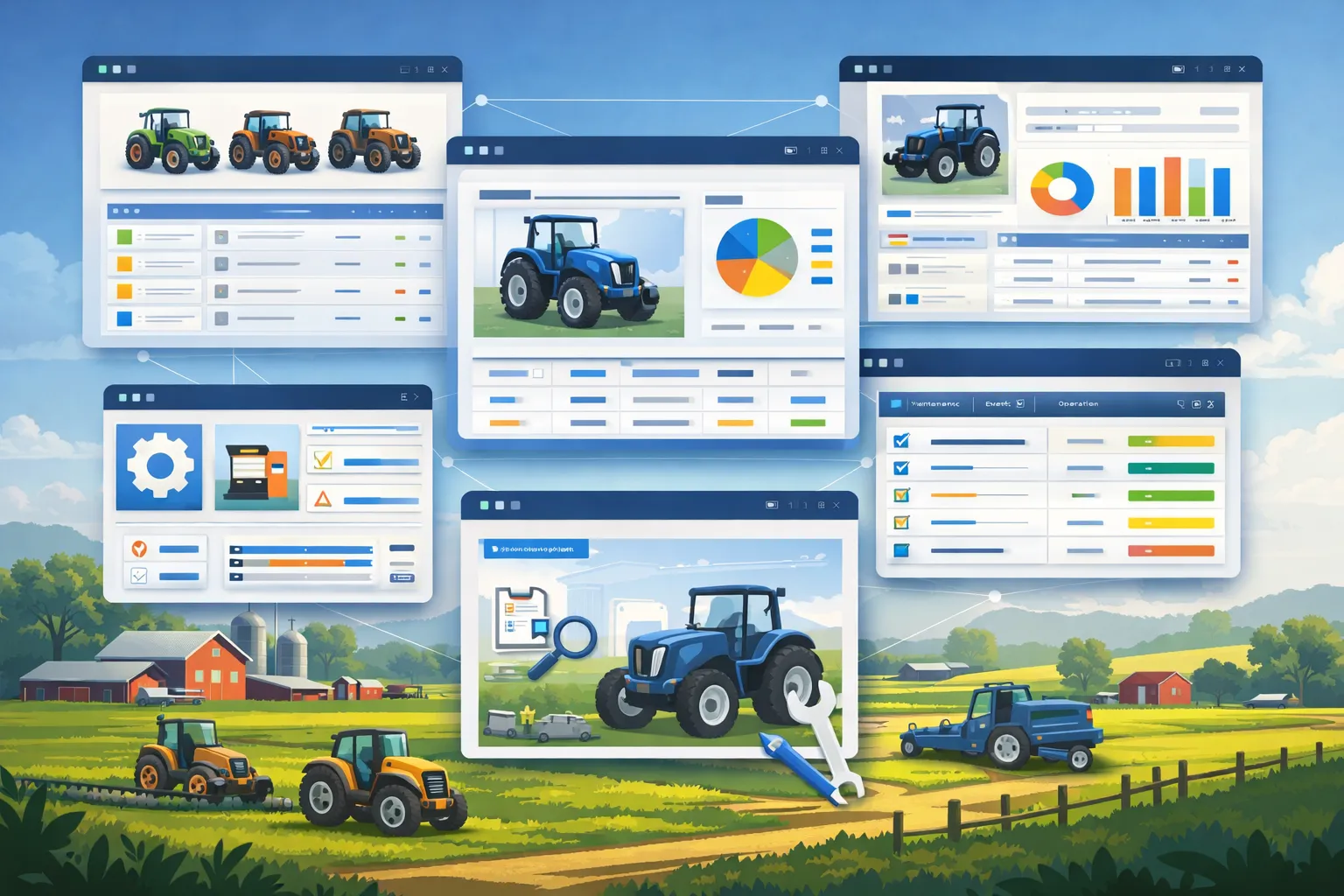
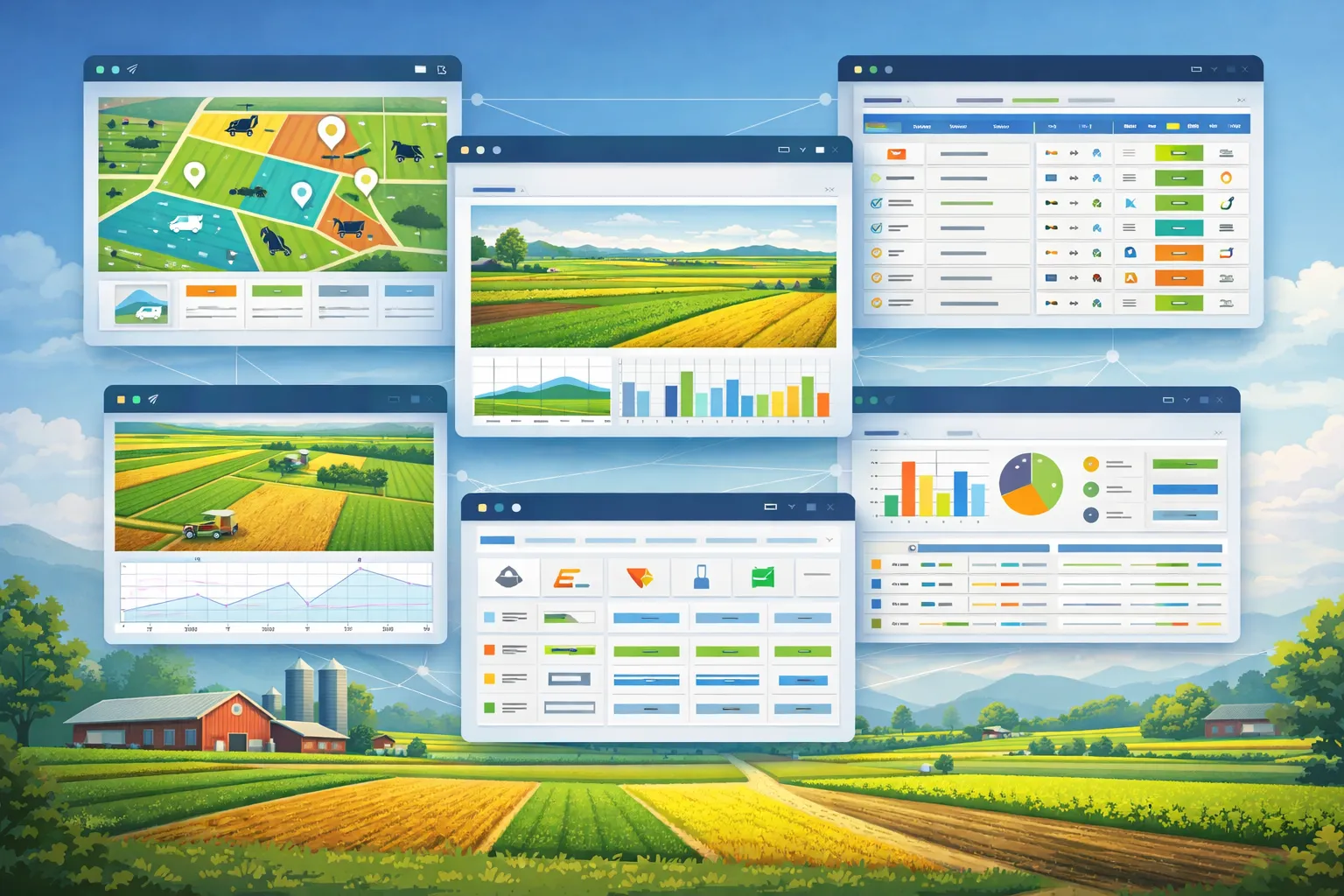
App windows over a farm with tractors at work: a machine list with coloured status dots, a vehicle profile with a pie chart, and a maintenance table with tabs for maintenance, events and operation.

FarmManager is a connected system in the John Deere Operations Center. "John Deere" and "John Deere Operations Center" are trademarks of Deere & Company. "CNH", "FieldOps", "Case IH", "New Holland", "STEYR" and "agrirouter" are trademarks of their respective owners.

Core features

Key features of telematics and live fleet map

The details of each function are further down, in its group.

Booking Proposals from the Tracks

The work appears under “Booking proposals” when a machine with telematics works at least ten minutes on a field with an outline, except for CNH.

Functions by group

Live map and fleet overview

You see live where your connected machines are and which route they drove in the last hours, if you wish also in the terrain model.

See all functions

Live Fleet Map

The map with your field boundaries shows all connected machines with their position and refreshes itself automatically.

More

Every connected machine with its position on a map with your field boundaries that refreshes itself. Coloured tracks with direction arrows show the route of the last 2, 4 or 24 hours; clicking a machine or a track highlights the route and zooms in. The info window names the field the machine is standing on, with filters by provider, state, field and machine, a legend and a full-screen mode. The markers of your fields, such as entrances or stones, appear as symbols on the map.

From the Business (Pro) plan

3D Mode with the Track Driven

In the terrain model of your fields, the track of the last four hours lies on the area as a band and can be played back.

More

A switch in the header swaps the map image for the terrain model of your fields. "2D" takes you back. The model opens by itself on the field where a machine is working right now; the machines stand on it as recognisable vehicles, and their track of the last four hours lies on the ground as a terrain-hugging ribbon carrying the colour of the state: working, moving or idling. The track plays back, with pause, the speeds 1×, 10× and 60×, a slider to jump to any point and "camera follows", which keeps the machine in view. At the end the view switches back to the actual position by itself. You can also show the same track in the “Terrain 3D” tab of each field.

From the Business (Pro) plan

Fleet Dashboard

Overview tiles show which machines are currently working, driving, idling or without a current signal, depending on what the provider reports.

More

Overview tiles show at a glance which machines are currently working, driving, idling or without a current signal (no report for 30 minutes), plus today's engine hours and fuel levels per machine. Machines from CNH with a current signal count as idling there, because CNH reports no work status.

From the Business (Pro) plan

One-Click Navigation to the Machine

From the map you start directions to the machine.

More

From the map you'll be able to start directions to the machine, on desktop via the map service, on mobile via your device's navigation app.

From the Business (Pro) plan

Connections and data sources

You bring the data of your machines into FarmManager through the connection to John Deere or CNH, your own device or a file.

See all functions

Supported Providers & Connections

You connect the John Deere Operations Center and CNH (Case IH, New Holland, STEYR) yourself, without activation by us.

More

You connect the John Deere Operations Center and CNH (Case IH, New Holland, STEYR) yourself via OAuth, with no activation on our side. agrirouter is prepared and follows once the approval is in place. Through it, FarmManager then receives telemetry, order data (ISOXML TaskData), field boundaries and Work Records (shape) and sends field boundaries and planned orders to the recipients you set up in agrirouter. FarmManager links machines with an exactly matching serial number automatically, creates machines with an unknown serial number as new ones and asks when serial numbers are similar. From both connections you also import fields with their boundaries, plant protection products and machine operations. From CNH they come with type of operation, crop, period and fields, from John Deere also with area worked and quantities. FarmManager takes over no sub-field or yield maps from either. You can, however, export a Work Record from the Operations Center as a shape and upload it under Machine data, which turns it into an as-applied map. The field comparison also takes over the farms that you created with the provider as farm sites and assigns the fields to them. “Compare providers” shows which values a provider delivers per function. A connection can be cut at any time without losing machines or recorded operating hours.

From the Business (Pro) plan

Map Markers and Drivers from the John Deere Account

From the John Deere Operations Center you take over markers such as entrances, stones or wet spots, and the drivers.

More

On the “Telematics connections” page, “Fetch map markers” brings in the markers from the John Deere Operations Center, such as entrances, stones or wet spots. They appear on the field in the “Map markers” tab but are still maintained with the provider, and every sync brings them up to date. “Fetch drivers” brings in the drivers from the John Deere account, and under “Link drivers” you link each one once to a user in FarmManager. If a machine operation from John Deere brings its driver along, the linked user appears in the “Driver” column. CNH reports no driver. If it is missing, you choose the driver yourself when you accept a booking proposal.

From the Business (Pro) plan

Connect Your Own GPS Devices

Devices without a manufacturer cloud, and depending on the model also a GNSS receiver, send their positions to FarmManager with their own device key.

More

Devices without a manufacturer cloud, such as an AgOpenGPS tablet or a GNSS receiver from CHCNAV, ComNav or SingularXYZ, send their positions directly to FarmManager with their own device key. On the “Telematics connections” page you choose machine, device type and device name under “Connect device”; FarmManager generates the key and shows it exactly once, with receiving address, QR code and a ready-made command for the bridge. Only a check value is stored, never the key itself. For each device you see the last reception; “Renew key” invalidates the old key immediately, “Disconnect” blocks the device, and positions already received are kept. For AgOpenGPS there is a reference bridge to download, so far tested only with a simulated data stream; whether a receiver can send to its own address without a bridge depends on the model. From the Business (Pro) plan.

From the Business (Pro) plan

Reading in machine data from files

You import machine data as a file from the USB stick of the terminal or from a manufacturer portal.

More

Not every machine has a live connection. On the machine or on the “Telematics connections” page, you upload a file under “Import machine data”: the TASKDATA folder from the terminal’s USB stick as a ZIP with the time logs, an EFDI time log, a CSV or Excel file from a manufacturer portal, a GPX track or an NMEA recording. FarmManager recognises the columns of a table by common German and English names such as “Timestamp”, “Latitude” and “Longitude”. The file yields the positions of the machine, the daily values of the fleet evaluation and, for every day, an entry in the operating-hours logbook, taken from the meter reading or, when that is missing or does not fit the track of the day, from the track. Field work it recognises appears among the booking proposals. If a day already has an entry in the logbook, FarmManager does not count it twice, and a file read in twice adds nothing new. From the Business (Pro) plan.

From the Business (Pro) plan

Letter template under the EU Data Act

Under the EU Data Act you can request from the manufacturer the data your machine produces at work.

More

Under the EU Data Act you can ask the manufacturer for the data your machine produces at work. Under “Data Act letter template” you download a letter for this as a text file. The name and address of the farm and the make, type and serial number of the machine are already in it. What FarmManager does not know, for example your customer number at the manufacturer, stays as a gap in square brackets. If the manufacturer is also to pass the data on to a third party, for example your contractor, a paragraph for that is prepared. You send the letter yourself. From the Business (Pro) plan.

From the Business (Pro) plan

Machine data and evaluation

You see what each machine reported last and how long its engine ran, and depending on the provider also how much of that was work.

See all functions

Live Telemetry per Machine

Depending on the provider, the machine page shows the last values transmitted, such as position, speed, fuel level and operating hours.

More

The machine page carries the values last transmitted, depending on the provider, position, speed and heading, fuel level, engine and working state and operating hours, plus a 24-hour history for the tank level and the operating hours. If a machine reports a mileage through John Deere or CNH, the distance travelled is shown on the machine; most field machines do not report one. CNH currently delivers neither speed nor heading or working state.

From the Business (Pro) plan

Fleet evaluation

The fleet evaluation shows how long each engine ran and how much of that was work, driving and idling, as far as the provider reports it.

More

FarmManager builds daily values per machine every hour from the positions your connected machines send anyway. For a period you choose, the “Fleet evaluation” page shows how long each engine ran and how much of that was work, driving and idling, in hours and as a share of the engine hours, plus the kilometres driven. For machines from CNH, the evaluation counts the engine time as idling and no kilometres, because CNH reports neither speed nor work status. Where the provider reports consumption, litres and litres per engine hour stand next to it, otherwise a dash. FarmManager deletes the positions themselves after 90 days, the daily values stay longer so that you can compare this year's maize harvest with last year's. You download every machine day as a CSV. From the Business (Pro) plan.

From the Business (Pro) plan

Operating Hours from Telematics and Retention

FarmManager writes the operating hours reported by John Deere and CNH into the operating hours logbook, with the provider as the source.

More

FarmManager writes the operating hours reported by John Deere and CNH into the operating hours logbook, with the provider as the source. For CNH, one entry per day carries the counter reading forward and holds the fuel consumption of the last 24 hours. FarmManager keeps positions and tracks for 90 days and error and warning codes for two years, so a recurring error stays visible over more than one season.

From the Business (Pro) plan

Alarms and error codes

Depending on the provider, management gets a message for movement during the rest period, long idling, a low tank level and new error and warning codes.

See all functions

Movement alarm and idle alarm

FarmManager reports when a machine moves during the rest period or an engine idles longer than set, except for CNH.

More

Under “Alarms” on the fleet evaluation you set a rest period, which may run past midnight, and, if you like, draw the yard on the map. If a machine moves during this time, administrators and managers get an alert in FarmManager straight away and, where set up, as a push message on the phone. With the yard drawn in, only a machine driving outside it raises the alarm, and the yard loader that starts early for feeding stays quiet. For farms with the movement alarm switched on, FarmManager also polls the positions every ten minutes at night. The idle alarm goes off once per idling spell when an engine runs at a standstill for longer than the minutes you set. The alerts name the machine and the time and lead to the Live Fleet Map. CNH reports neither speed nor work status, so the movement alarm does not trigger for machines from CNH, and the idle alarm cannot tell work from idling for them. From the Business (Pro) plan.

From the Business (Pro) plan

Error and Warning Codes

Error and warning codes of your machines connected via CNH or John Deere appear per machine, and you can turn a code into a workshop order.

More

Error and warning codes of your machines connected via CNH FieldOps (Case IH, New Holland, STEYR) or the John Deere Operations Center appear per machine on the “Error and warning codes” tab, with time, type, code, description, the severity as the manufacturer reports it, status (active, no longer active, not reported) and provider, filterable and exportable as CSV, Excel or PDF. The hourly sync fetches the machine alerts from John Deere. FarmManager records diagnostic codes as errors and the other alerts as warnings, and the code appears as the Operations Center builds it from controller, SPN and FMI. John Deere does not report whether a code is still active, so it shows “not reported”. If you wish, the machine list shows the column “Alerts 24 h”, and the info window of the live fleet map the number of codes from the last 24 hours. FarmManager notifies management of new codes, one per retrieval, the same code at most once in 24 hours. With “Report defect” in the row of a code, you turn it into a workshop order that stays linked to the code.

From the Business (Pro) plan

Notifications

An automatic notice arrives for a failed sync, a low fuel level or new error and warning codes of a machine.

More

Automatic alerts for a failed sync, a low fuel level or new error and warning codes on a machine will keep you informed. A tank level below 15% counts as low; this notice comes at most once a day per machine.

From the Business (Pro) plan

Field work and orders

You take over the work of your machines from John Deere into the field record, and for all providers except CNH also from the tracks.

See all functions

Machine Operations from John Deere

For fields that are already linked to a field in FarmManager, you fetch the work operations from the John Deere Operations Center.

More

If you work with John Deere, “Sync machine operations” on the “Telematics connections” page fetches the work operations from the Operations Center. Only the fields already linked to one of your fields are queried. Sowing, application, harvest and tillage arrive with start and end, harvest year, area worked and quantities. For sowing, each variety comes with its quantity; for a spraying, each product of the tank mix with its quantity per hectare and the water as carrier on its own; for harvest, the yield per variety, plus harvest mass and grain moisture, which the crop plan suggests as the yield if the field has no yield map. You find the operations in the “Machine operations” tab of the machine and of the field. If the chassis number matches none of your machines, the operation still stays on the field, marked “Machine not assigned”. Each variety, product and fertilizer also arrives as an order under Agriculture › Machine data. There you check it and take it over into the field record like an order from the USB stick. The Operations Center works out the quantity per product of a tank mix from the mix. FarmManager shows it, but you enter the application rate of the plant protection application yourself. An order enters the inbox only once, even if you sync more often. From the Business (Pro) plan.

From the Business (Pro) plan

Booking Proposals from the Tracks

The work appears under “Booking proposals” when a machine with telematics works at least ten minutes on a field with an outline, except for CNH.

More

When a machine with telematics works for at least ten minutes on a field with an outline, the work appears on the “Booking proposals” page, with day, machine, field, hours, distance driven and area. No proposals arise from CNH positions, because CNH reports neither speed nor work status. FarmManager works out the area from the track over the field and at most up to the field size, because no working width is stored for the machine. You choose the operation type and the driver and accept the proposal as an operation in the field record; FarmManager also creates an entry in the operating hours logbook if the provider has not delivered one for that machine on that day. For plant protection and fertilizing, the pre-filled form opens, where only product and quantity are missing. FarmManager books nothing by itself. You can dismiss a proposal and reopen it later, and you accept or dismiss several proposals in one step. The day follows the local time on the farm, and a pause of more than ten minutes splits the work into two proposals. From the Business (Pro) plan.

From the Business (Pro) plan

Automatic Job Capture on the Field

For a confirmed or running contractor job for today, FarmManager creates a machine line for each connected machine on its field with an outline.

More

When a connected machine drives onto the field of a confirmed or in-progress contractor job that is planned for today, FarmManager creates a machine line in the job, sets the job to “In progress” and notifies the management. This applies to every connected machine of the farm on that field, not just the scheduled one. The line starts with the machine's hours reading and takes over the price of the job's first machine line. When the machine leaves the field (three positions in a row outside it or ten minutes without a position on it), FarmManager closes the line with the current hours reading and reports the hours worked to the management. Check the line before billing; if the machine reports no operating hours, enter them yourself. FarmManager recognises the field by its outline, for jobs on customer fields by their outline; a field without an outline is not captured. Contractor jobs are part of the Enterprise (Premium) plan.

From the Enterprise (Premium) plan

Send Field Boundaries and Orders to agrirouter

As soon as FarmManager is released for agrirouter, you send field boundaries and planned orders through it to your terminal or your contractor.

More

As soon as the agrirouter connection is released, you use it to send field boundaries and planned orders to your terminal or to your contractor. In the field list you select the fields and choose “Send to agrirouter”. The outlines go out as a shape file in WGS84, one entry per field with name, FLIK, area, land use and crop type. FarmManager skips fields without an outline and tells you how many there were. Spray orders, planting plans and fertilizer demand assessments you send from the row or, for several selected entries, as TaskData, the same file you would otherwise copy onto the USB stick. Recipients are everyone with a route for the data type in your agrirouter account, or one of them that you choose. In the agrirouter outbox under Telematics every file is listed with recipient, count and status. If a file did not go out, the reason is in its row, for example a missing route, and “Send again” sends it once more. “Sent” means that agrirouter accepted the file; whether the recipient opened it, agrirouter does not report back. From the Business (Pro) plan.

From the Business (Pro) plan
Common questions

Frequently asked questions

Answers to common questions about this module.

Modules

Other modules

These modules belong to the same area and work with the same data.

Field & Machinery

Try it with your own animals and fields

You test FarmManager free for 30 days, and on request we do the setup together with you at no extra charge.