
Welcome
On your first visit, FarmManager opens a welcome window with the most important features.
At the top are your next steps: completing the client data, inviting users, choosing the subscription and, if you keep animals, setting up the HI-Tier connection.
If you are coming from another program, you will find the way to the data takeover below.
Further down, you can expand any topic you need at the moment, for example Help & manuals.
Close the window with the cross in the top right corner.
Farm profile
Next, FarmManager asks about your farm profile, that is, which livestock species and farm activities belong to your farm. Currency and Unit system are already set to euro and metric.
Click Livestock species and search for your animals, for example Cow.
Under Farm activities, choose what else your farm works with, for example Cropping and Machinery. This decides which modules appear in the sidebar.
Click Save changes.
Customize the menu
Now the Visible modules window opens. Here you choose which modules appear in the sidebar.
Remove the tick from everything you do not need, for example Projects.
With Deselect all you take out a whole section. You can still reach hidden modules through the search.
Finally, click Save.
The dashboard
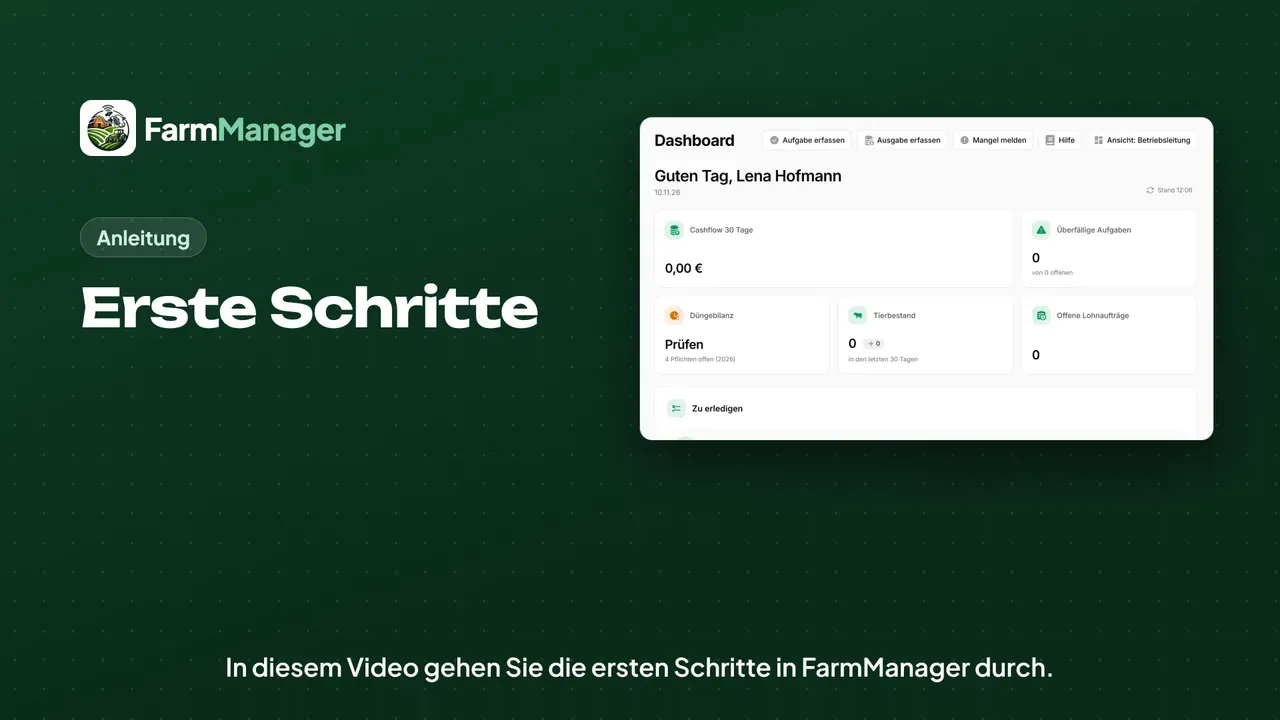
Now you see your dashboard with a few key figures and what is coming up.
On the left is the menu with the modules you have just selected.
With the buttons at the top you record common things directly, such as a Task or an Expense.
Tips
You can reopen the welcome window at any time: click your profile in the top right corner and choose Getting started.
In the same menu you will find Enter client data and Subscription Management.
You can adjust the menu later with the button next to the menu search.
A click on Help opens the manual for the page you are currently on.