
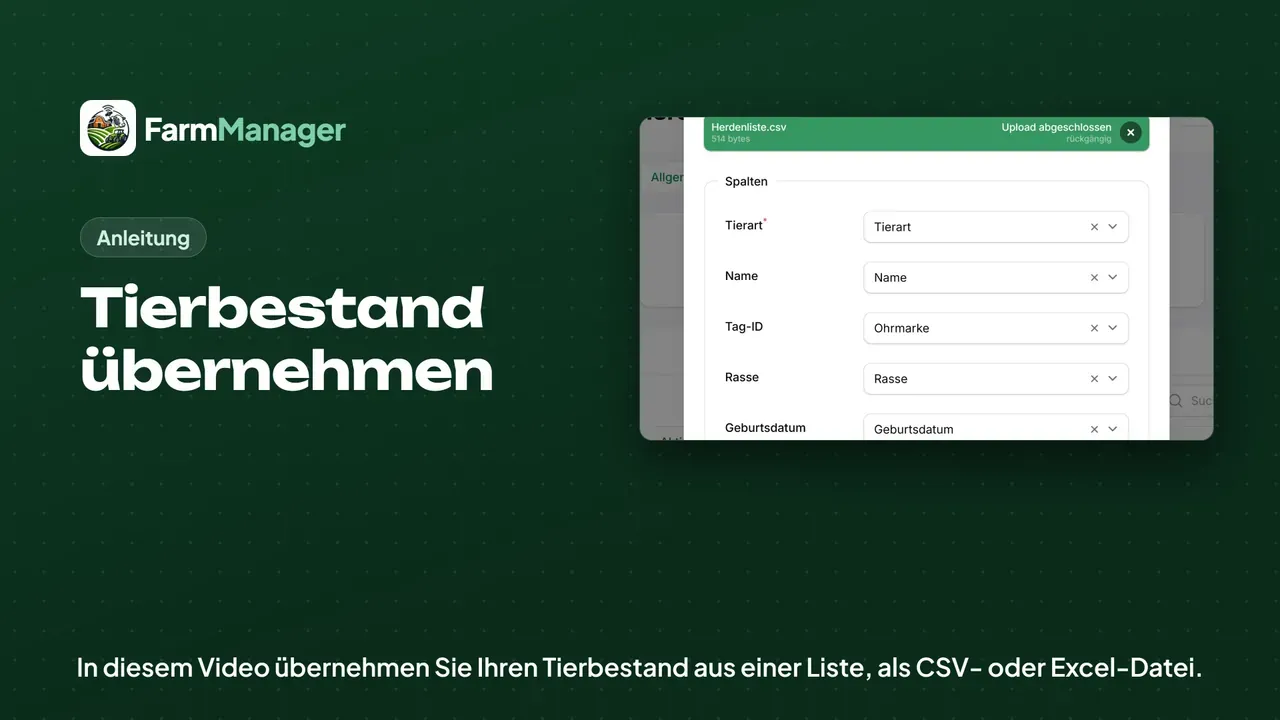
Open the import
In the sidebar under Animal Management, open Animals. On a new farm the list is still empty.
Click Import Animals at the top. With Download example CSV file you get a template with all columns.
Match columns
Click in the field and choose your list.
Under Columns, FarmManager matches the columns of your file by their headings. Check every match, for example the ear tag from the file belongs under Tag ID.
For Animal type, Gender and Animal status your file needs one column each. It can contain the words FarmManager also shows, such as cattle, female and healthy.
For gender, FarmManager also understands the HI-Tier codes W and M (German codes for female and male).
If your farm is connected to HI-Tier, every new animal also needs its Date of birth.
Import
Click Import. The import runs in the background, and you can keep working meanwhile.
As soon as it is done, the bell in the top right tells you. It says how many rows FarmManager took over.
For rows that FarmManager cannot take over, the message offers a file to download.
Result
Open Animals again, and your herd is in the list. At the top FarmManager counts the animals, split by gender.
FarmManager matches the breed against the breed list. If a breed is missing there, the message names it.
Tips
If you import the same list again, FarmManager updates the animals by their ear tag instead of creating them twice.
The import reports nothing to HI-Tier, because the animals are already registered on your farm. You find the synchronisation with HI-Tier in the HI-Tier menu at the top.
If you want to look something up, click Help at the top.