
Overview
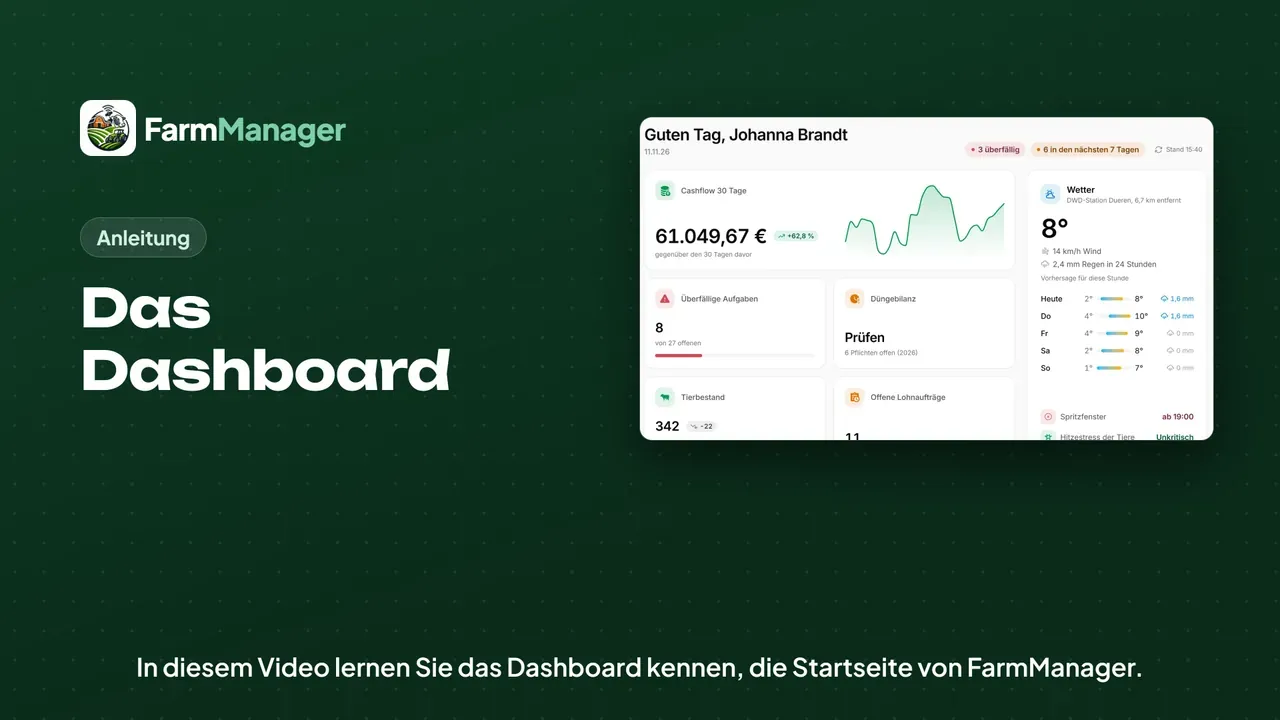
After you sign in, FarmManager opens the dashboard. At the top it says how many entries are overdue and how many fall due in the next 7 days.
Below that come the key figures of your farm, for example the cash flow of the last 30 days and the overdue tasks. Which figures appear here depends on your role and your package.
On the right is the weather from the nearest German Weather Service station, together with the next spray window. The weather appears as soon as one of your land areas has an outline.
To do
Further down, To do lists what is coming up, sorted by Overdue, Next 7 days and Later.
With the buttons above it you show just one area, for example Animal health. With All you see every entry again.
Deadlines
Below that, click Manage all deadlines. Every statutory deadline is listed here with its due date and the consequence of missing it.
With the cross you hide a deadline that does not apply to your farm.
If you have met a deadline, click Mark as done and then Confirm. You then get no more reminders for that deadline.
The deadline now shows as confirmed in the list. If you want to take that back, click Undo and confirm, and the deadline is open again.
With Close deadline list you fold the list away again.
Views
In the top right, under View, you choose which area of work the dashboard is put together for.
My day shows your shift, the button for Clock in and your own tasks.
Under View you also find the Farm overview with the key figures of all areas. Each area is a group that you open with one click.
To get back to the start page, choose View and then Farm management.
Tips
FarmManager remembers the view you chose for your account.
The figures are valid for the time next to As of. A click on it recalculates them.
With the buttons at the top you can directly record a task or an expense, or report a defect.
If you want to look something up, click Help at the top.