
Create an account
Open farmmanager.cloud and click Get Started in the top right corner. The Register as a new customer page opens in a new tab.
Enter your name under Name, then your Email address below it. Fields with a red asterisk are required.
Choose a Password and enter it again under Confirm password.
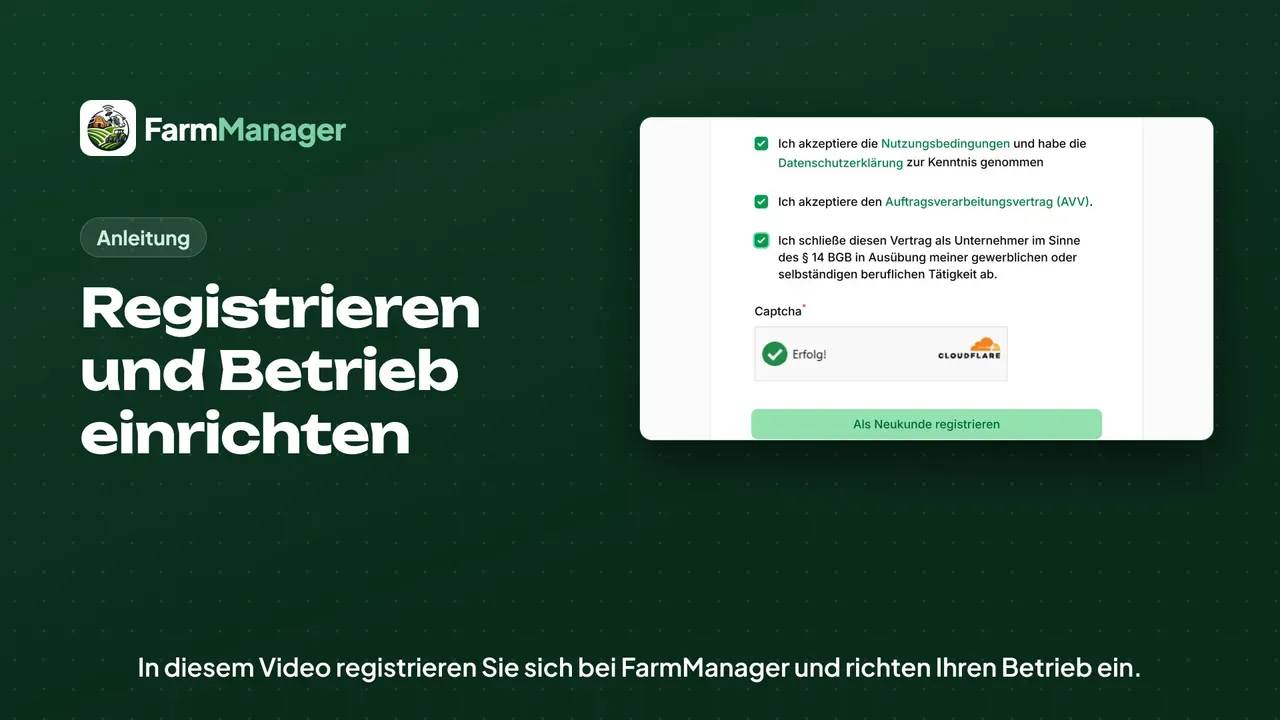
Tick the three boxes further down. By ticking them you accept the Terms of Use and the Data processing agreement (DPA) and confirm that you are entering into the contract as a business.
Under Captcha, Cloudflare checks that a person is using the page. If a box appears there, click it.
As soon as it says Success!, click Register as a new customer.
Confirm your email
Open the email with the subject Verify Email Address in your inbox.
Click the Verify Email Address button in the email.
Set up your farm
FarmManager then opens the Enter client data page. Under Name, enter the name of your farm, for example Hof Hofmann.
Under Email, enter the farm's email address. The Phone Number is optional.
Enter the address with Street, Street Number, City and Postal Code. Of these, only city and postal code are required.
Country is already set to Germany, and State/Region is optional.
Plan and passkey
Finally, choose which plan you would like to try.
The upper option suits farms without livestock, that is arable farming, grassland, special crops and forestry. With it, FarmManager also asks whether you employ staff or seasonal workers and whether you manage woodland.
With the lower option, every module is open to you during the trial, including those for livestock. You decide later what you book after the trial.
Click Confirm client data.
FarmManager then offers you a passkey. With it, you will sign in by fingerprint, face recognition or device PIN in future.
Click Set up passkey now and follow your browser's prompts. If you would rather stick with your password, click Skip for now.
After that you see your dashboard for the first time. The tutorial “Getting started” shows how to continue from there.
Tips
If you already have an account, click sign in to your account at the top of the registration page.
Click the eye in the password field to see whether you made a typo.
If no email arrives, check your spam folder or click Resend email.
If a required field is empty, the browser shows a hint at that field when you click Confirm client data.
Until your first purchase you can switch the trial scope under Subscription Management with Change trial scope.
You can also set up the passkey later in your profile, which you find in the top right corner under your name.